
Marketer, analyst, ex-CMO focused on the Google ecosystem (Ads, Merchant Center, GA4, GTM). Google Partner. 150+ projects, 100+ positive reviews on Freelancehunt, 12+ countries.
- I work directly, with no account managers or subcontractors
- I measure results in sales, not in-platform conversions
- Maximum expertise in the Google ecosystem — instead of “PPC, social ads and SEO, all in one”
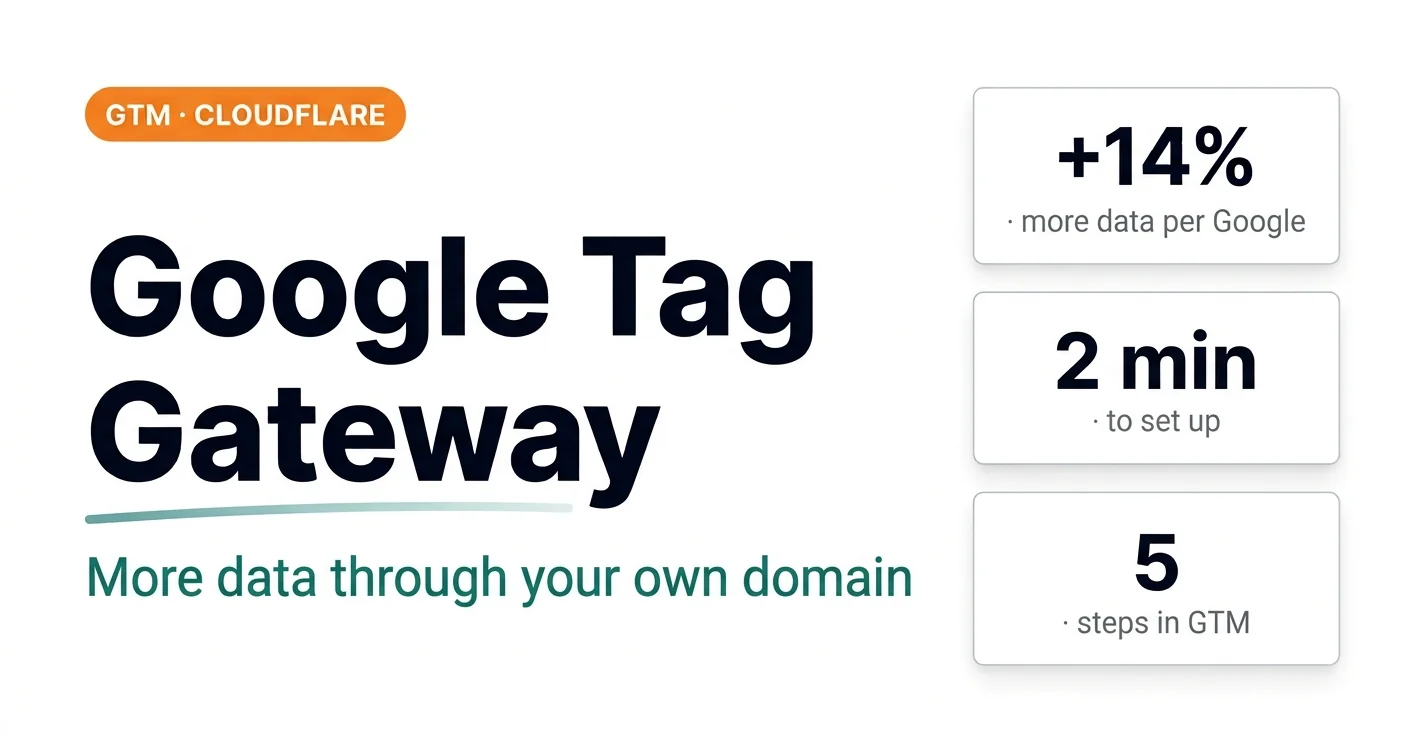
According to Google, Google Tag Gateway delivers about 14% more data reaching your ad account and analytics. I have not verified this figure myself yet. But even if it is +5%, that is already great, because the integration is as simple as it gets and takes a few minutes.
Below is what it is and how to set it up via Google Tag Manager and Cloudflare.
Contents
Google Tag Gateway: +14% data accuracy — setup in 2 minutes via GTM and Cloudflare

What Google Tag Gateway is
Normally Google tags load from Google domains such as googletagmanager.com. Ad blockers and privacy-focused browsers simply cut some of these requests. As a result, some conversions and events never reach Google Ads or GA4. More data is lost when people decline the cookie banner — that is what Consent Mode v2 addresses.
Google Tag Gateway changes the setup: tags load and send data through your own domain. To the browser, it is a request to your site rather than to a third-party service, so it gets blocked much less often.
More data means better-trained bidding strategies, more accurate reports and fewer “lost” conversions.
I already use Google Tag Gateway on projects. For example, in the metal processing case — together with moving to a fast landing page on Cloudflare and call tracking.
What you need for the setup
Just two things:
- admin access to Google Tag Manager;
- access to Cloudflare with the right permissions, and the site must already be connected to Cloudflare.
I will not explain here how to connect a site to Cloudflare. That is done by your admin, developer or whoever runs the site. I did it myself — nothing complicated, and there are plenty of guides online.
Step-by-step setup
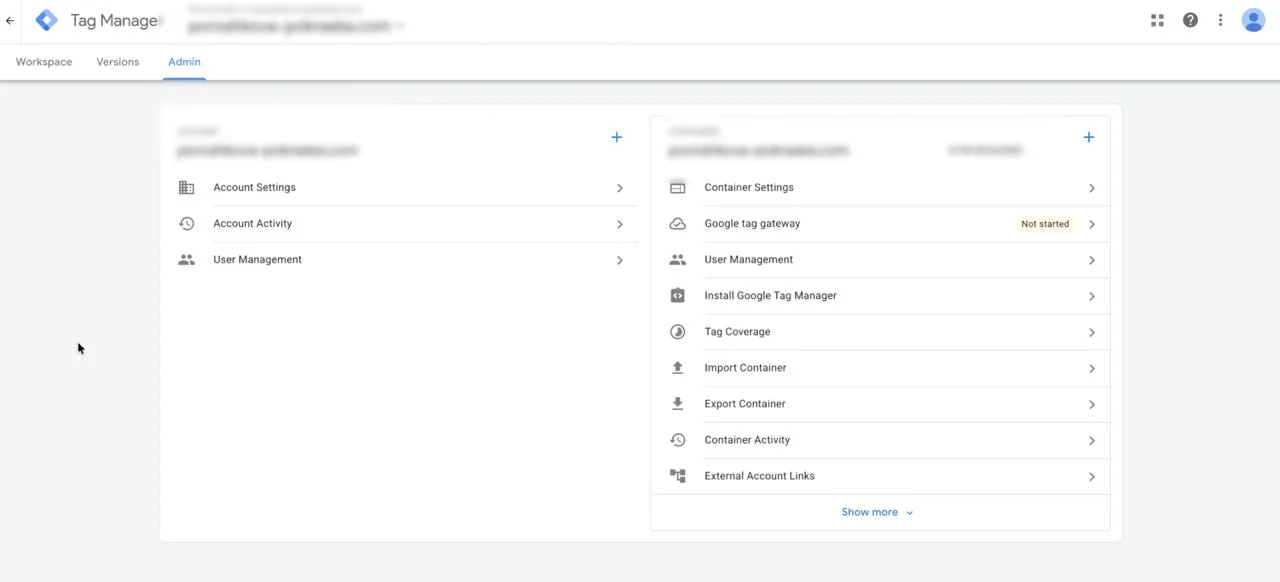
Step 1. Open the container settings
In Google Tag Manager, go to the Admin section. In the container settings block, find Google Tag Gateway. If you have not set it up yet, the status will say so. Click on it.
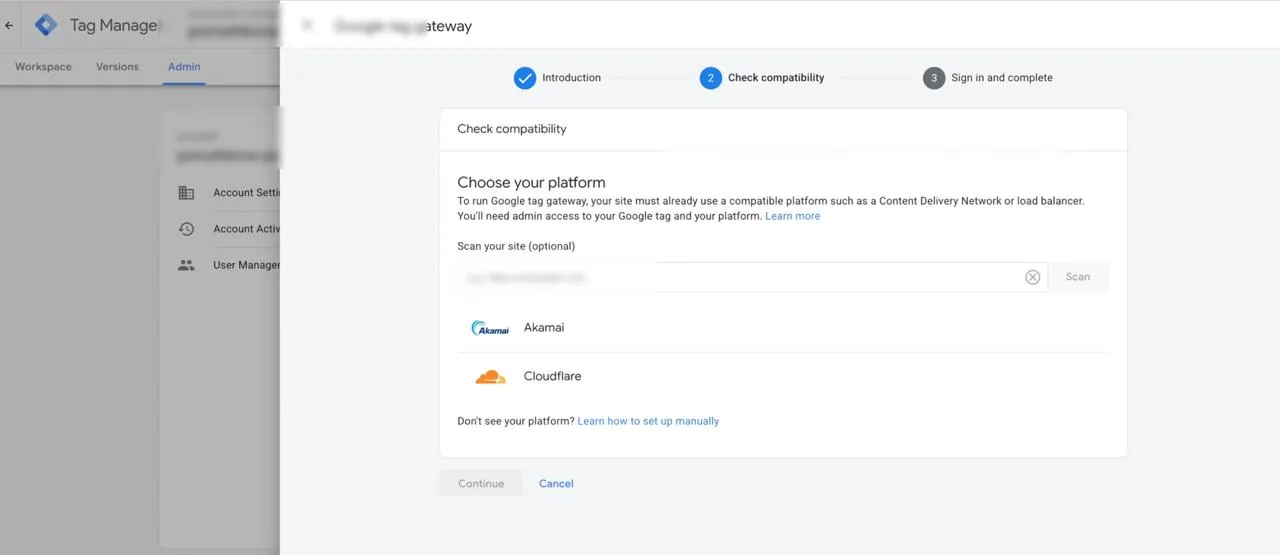
Step 2. CDN check
Click Continue. GTM will check whether your site runs through one of the supported CDNs. In my case it found Cloudflare. Click Continue again.
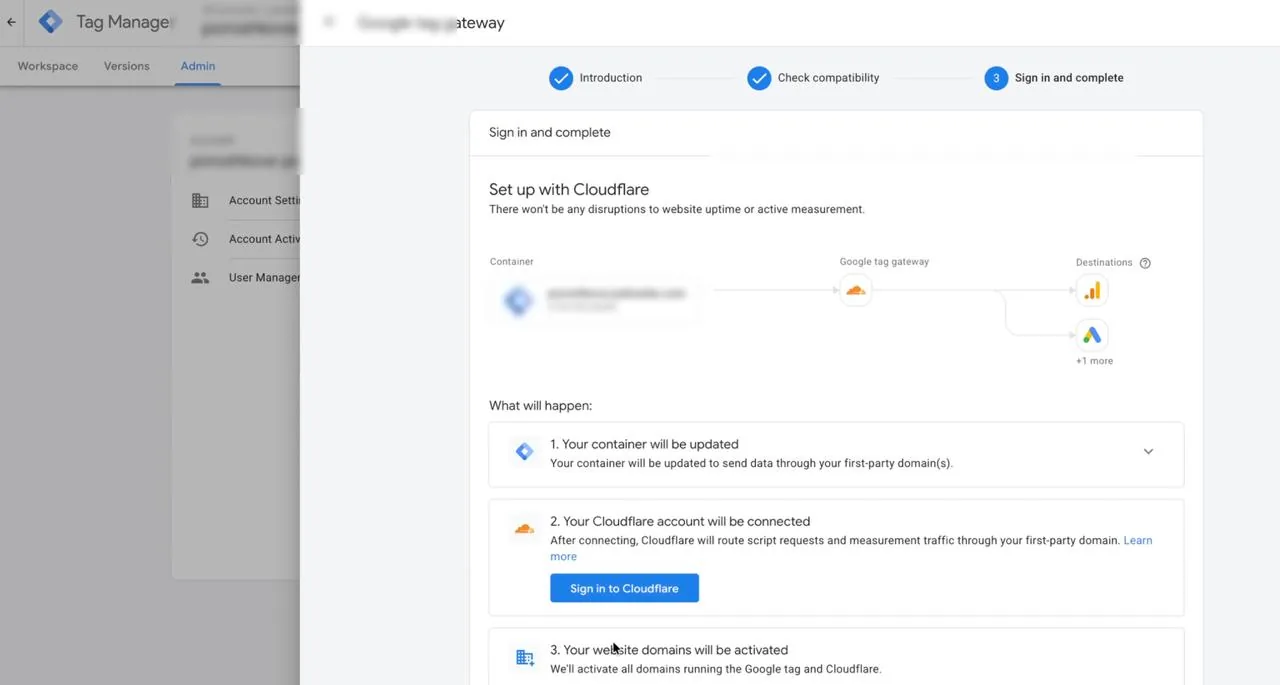
Step 3. Sign in to Cloudflare
GTM will ask you to sign in to your Cloudflare account. Sign in and click Allow.
Step 4. Choose the domain
Choose the domain. I only have one, so there was nothing to choose from. If you have several domains, such as test ones, choose only the one your main site runs on. Click Complete setup.
Step 5. Done
The setup is finished. Within an hour or two the status will change to active. Click Done — there is nothing else to do.
When everything is working, you will see a message that the container is sending data through your domain. That is the sign it is set up correctly.
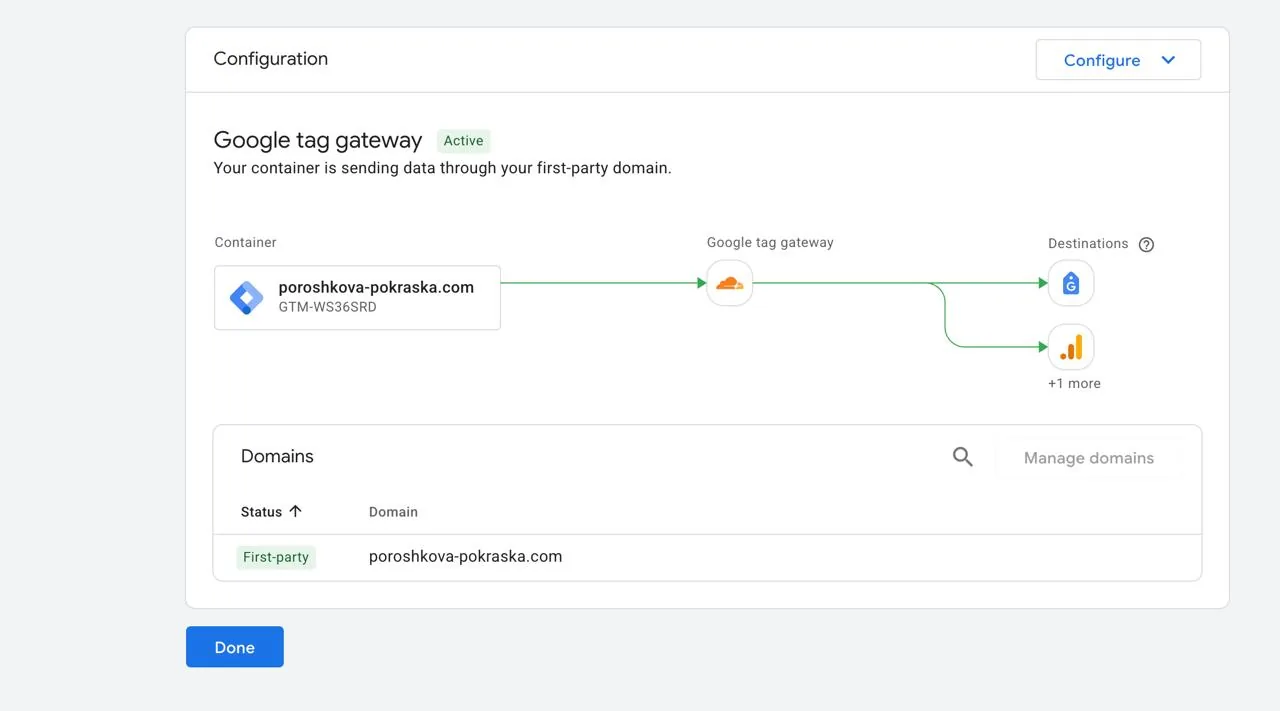
Really two minutes, if everything is ready in advance.
04 — AnalyticsConversion tracking with GTM and GA4Accurate tracking: Google Tag Manager, GA4, Enhanced Conversions, Google Tag Gateway.What Google Tag Gateway will not fix
Tag Gateway helps collect more data. But if the data itself is broken, it will not fix it. Duplicate purchases, micro-conversions in bidding, a purchase event in the wrong place — all of it still goes to Google Ads, just in larger amounts.
So first comes correct tracking, and Tag Gateway is a nice bonus on top.
 Google AdsThe Dunning–Kruger Effect in Google Ads: Why Audit a $500 Contractor Even When Everything WorksDuplicate purchases, micro-conversions in bidding and restarts instead of diagnosis: what an audit finds in the accounts of $500-a-month “experts”.
Where to find me
Message me on Telegram or by email — I respond quickly. Telegram channel and YouTube are for those who want to see real cases before reaching out and understand my approach.