
Marketer, analyst, ex-CMO focused on the Google ecosystem (Ads, Merchant Center, GA4, GTM). Google Partner. 150+ projects, 100+ positive reviews on Freelancehunt, 12+ countries.
- I work directly, with no account managers or subcontractors
- I measure results in sales, not in-platform conversions
- Maximum expertise in the Google ecosystem — instead of “PPC, social ads and SEO, all in one”
Since October 21, advertising in ChatGPT has been available in Ukraine too. I registered an account, set up conversions, uploaded a test feed and built my first campaign. Below is what’s there, what you need to do before launch and where everything still runs into the beta version.
Contents
Advertising in ChatGPT: Ads Manager Walkthrough and My First Campaign

Billing: the first thing that didn’t work
Before launch you need to set up two things: conversions and billing. Billing didn’t work for me, I’ll be honest. I tried several times, from different browsers and accounts, and the form won’t go through. In my screenshot it asks me to choose a “valid region”, even though Kyiv Oblast is already selected.
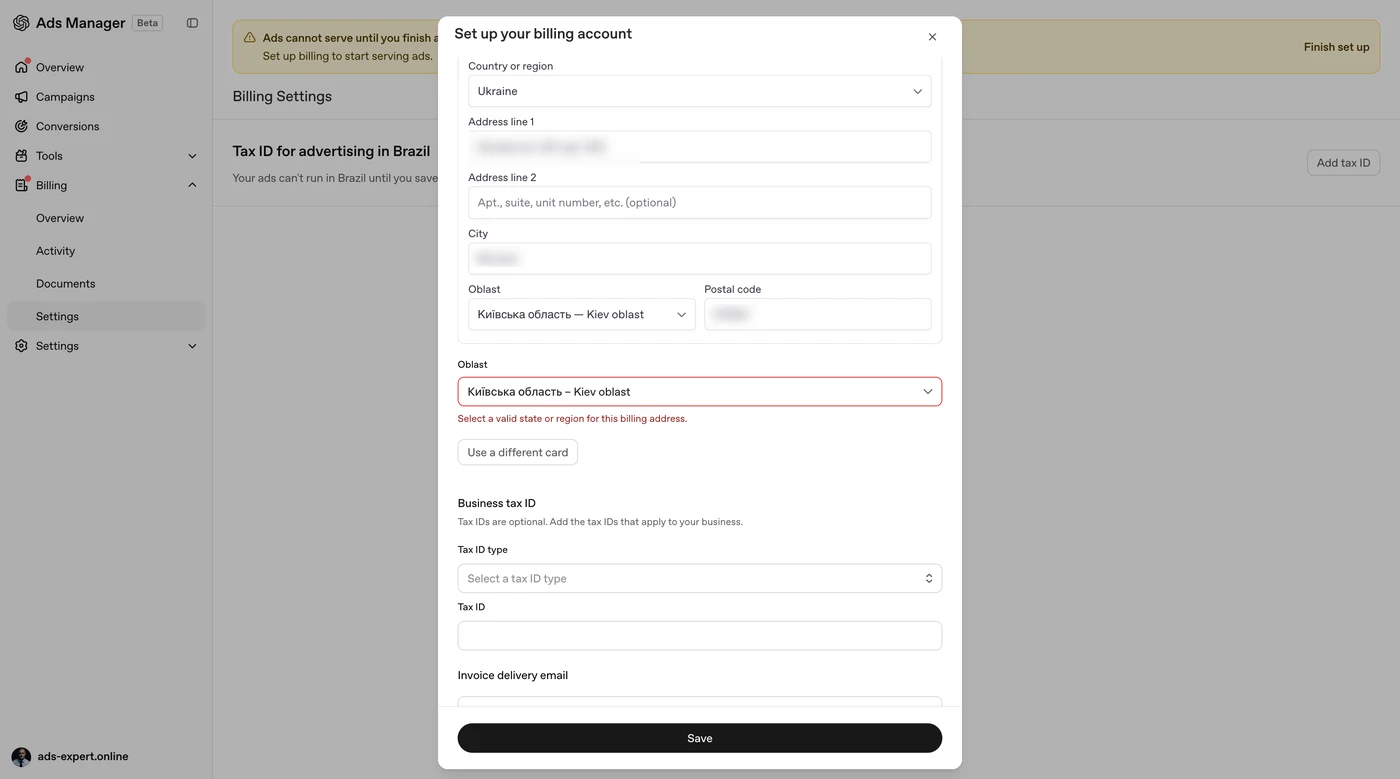
Most likely these are beta bugs and they’ll be fixed soon. But until billing is set up, no ads run: the account reminds you with a yellow banner on every page.
Conversions: pixel and event via Google Tag Manager
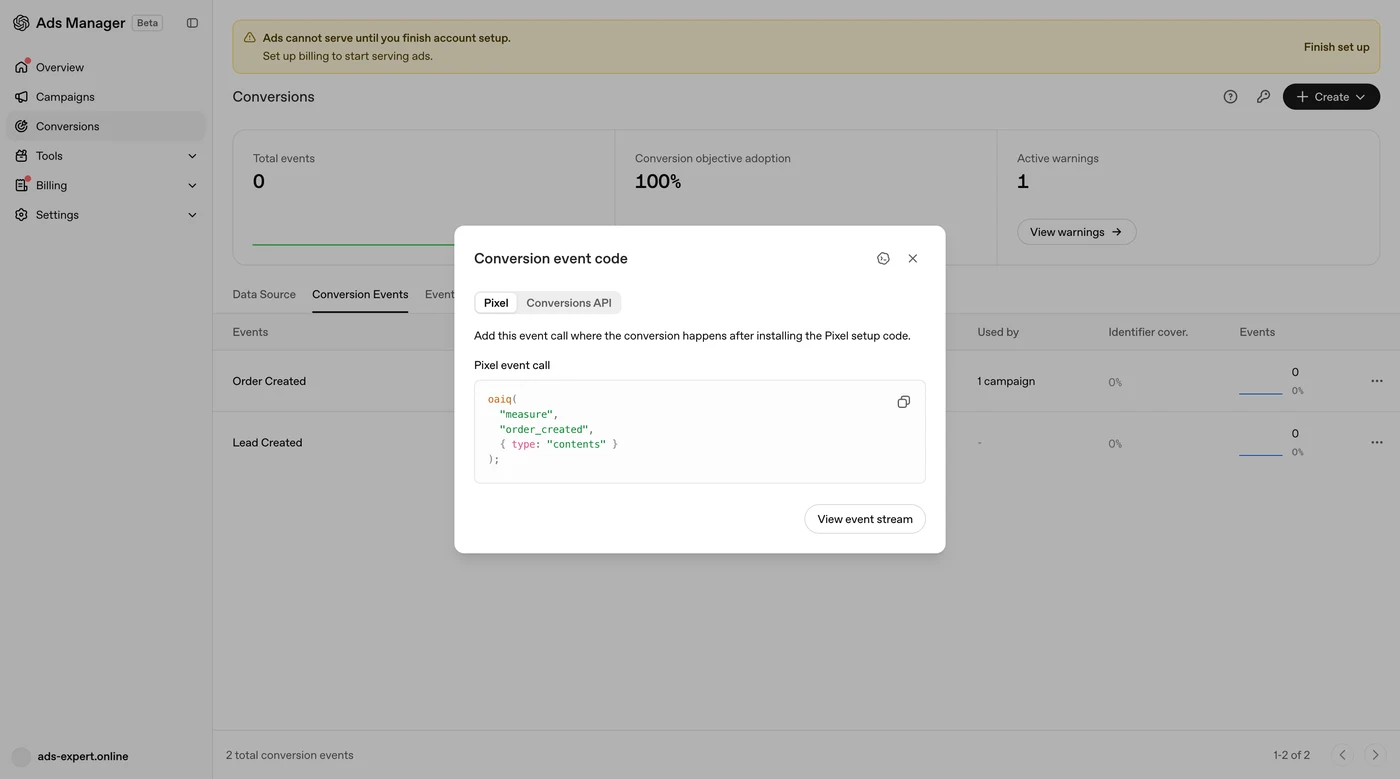
Conversions are set up in two steps. First you create a data source, the pixel, then conversion events, and you put them on the site. There’s also an alternative to the pixel: the Conversions API, which sends events from your server.
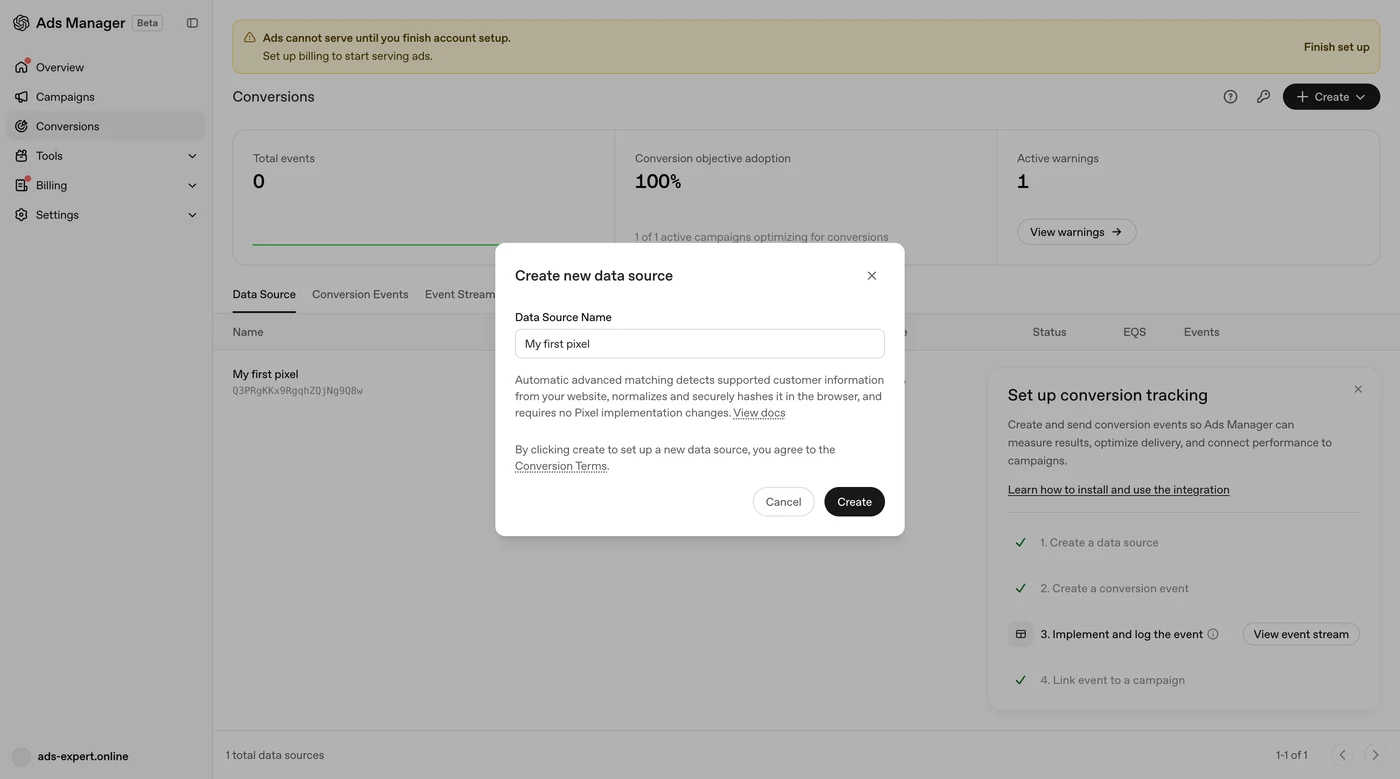
There are twelve standard events: leads, orders, sign-ups, subscriptions, appointments, app installs and so on.
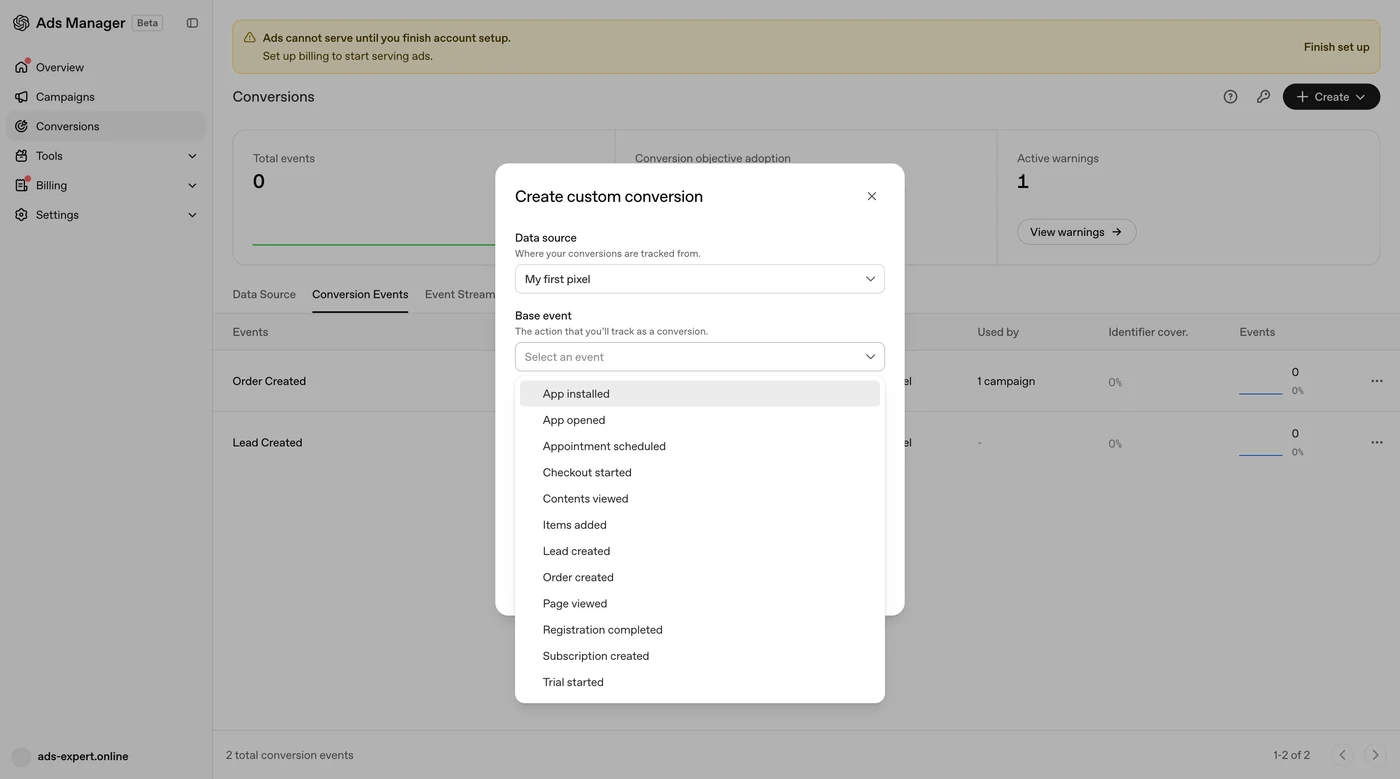
I set everything up through Google Tag Manager, and there’s nothing special here. The principle is the same as with the Meta pixel or GA4 events. Two tags: the first is the pixel itself on all pages, the second is the lead_created event on form submission.
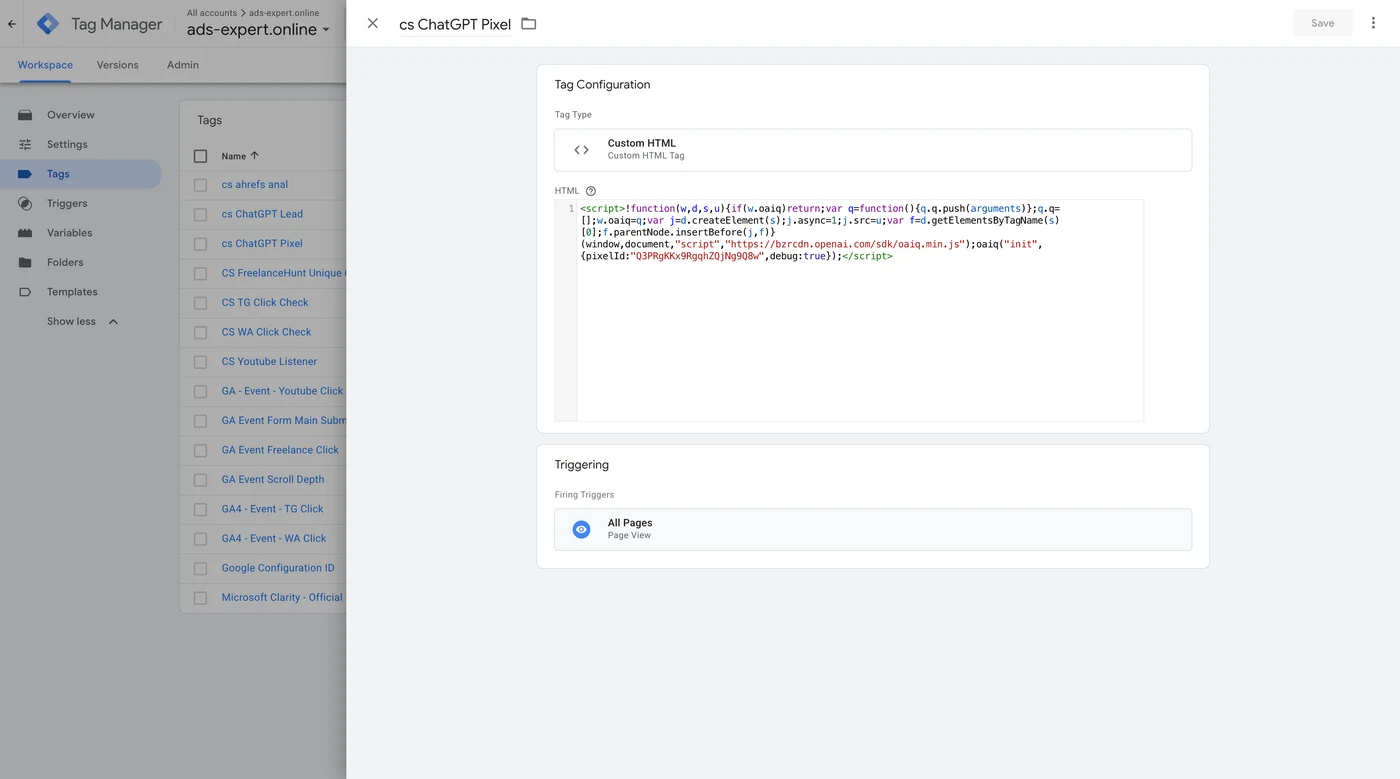
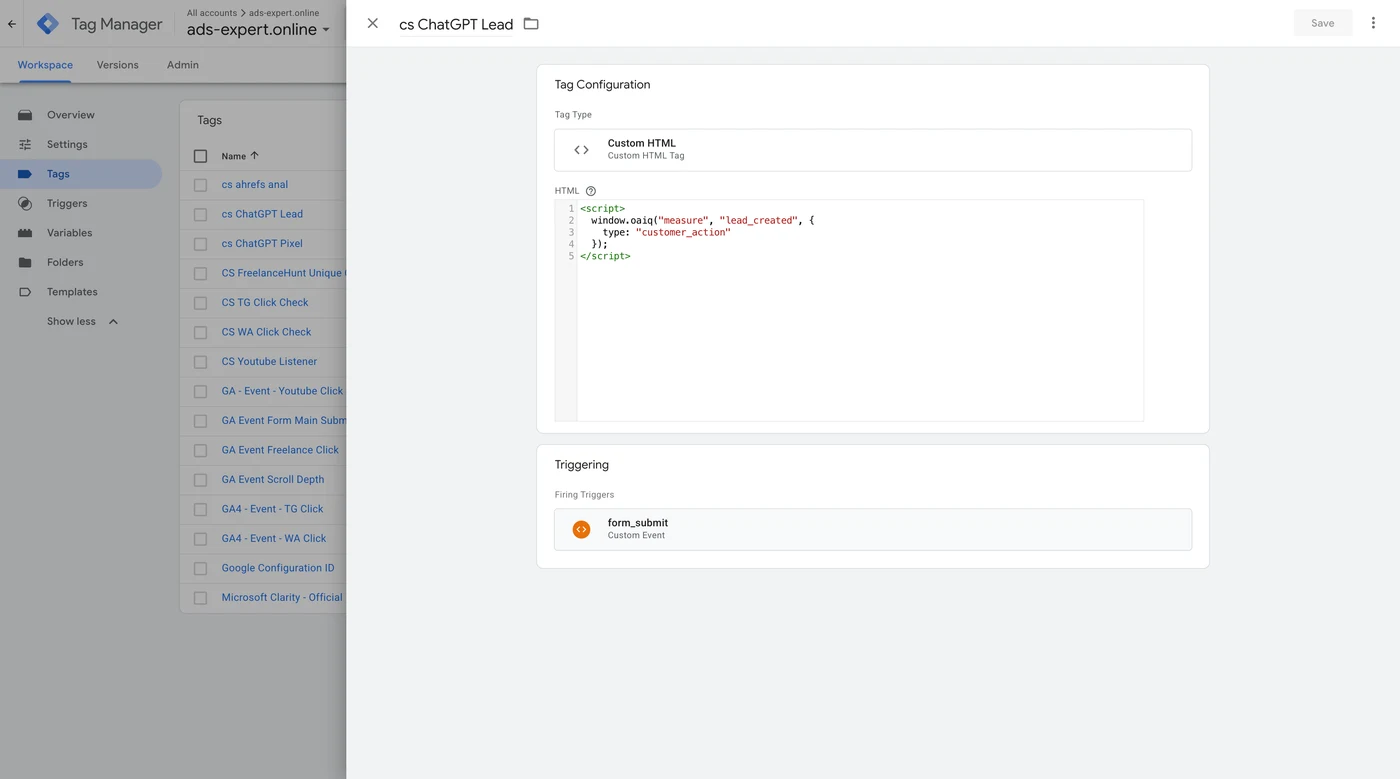
The account shows the event code for each conversion itself, and there’s separate documentation for purchases. You can paste the code directly into the site, but I don’t recommend it: with Tag Manager it’s easier to control what fires and when. How not to set up tracking, I showed in the breakdown of an agency’s $750-a-month tracking.
Tools: feeds, change history, audiences
The Tools section has three blocks. Change history is self-explanatory. Audiences are for uploading your own data, such as a customer list. To target your own audience you need at least 25,000 matches, which is out of reach for most Ukrainian businesses. Besides, in Google Ads I’ve never seen uploading a customer list noticeably affect the ads, either positively or negatively.
Product feeds
A feed is needed for product ads. You can upload it in three ways: as a CSV or TXT file, as a file by URL, or via SFTP. Products from the feed expire after two weeks, so a one-off file is only good for testing. For real work you need a URL or SFTP so the feed updates automatically.
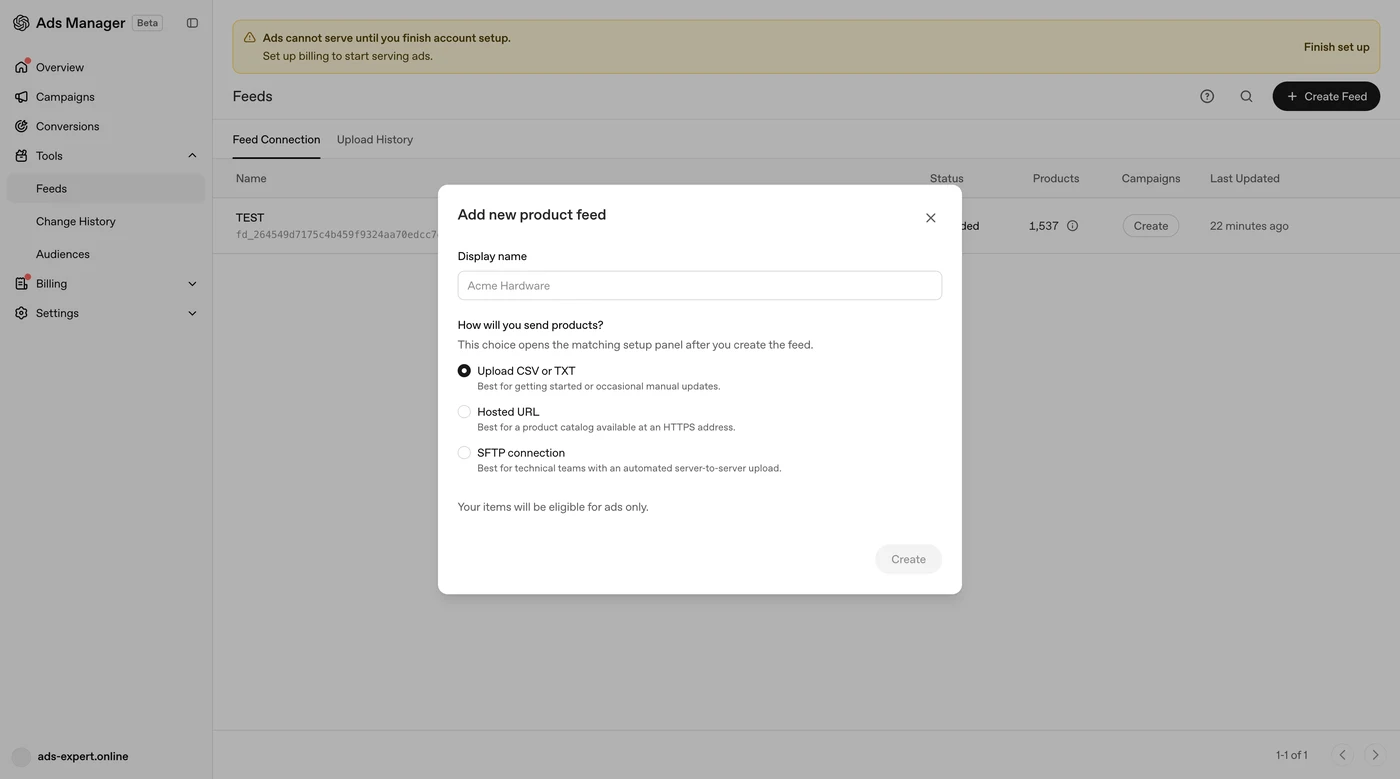
I made a test feed based on a live feed from one store and uploaded it as a file, just to check whether it would load. 1,537 products came through, three were rejected. The feed structure is described in the documentation; it’s not a hard task.
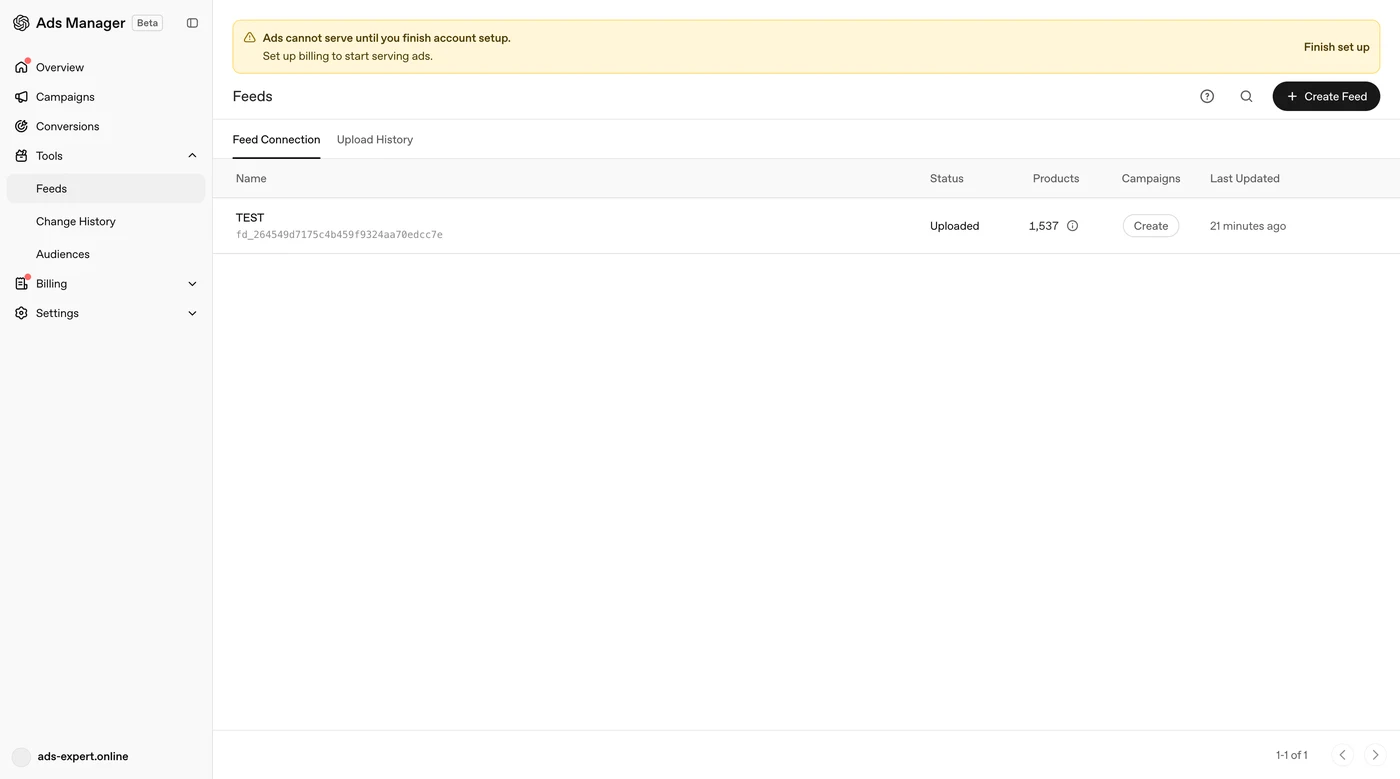
But product ads can’t be launched for Ukraine yet. There are plenty of countries where they work — the US, the European Economic Area, Bahrain, Algeria, Egypt and others — but Ukraine isn’t among them yet. I think it’s a matter of time.
Campaign: type, goal and budget
The account is very similar to Meta Ads Manager: simple and uncluttered. There are two campaign types: standard and with a product feed. Only standard is available to me, because feeds don’t work for Ukraine.
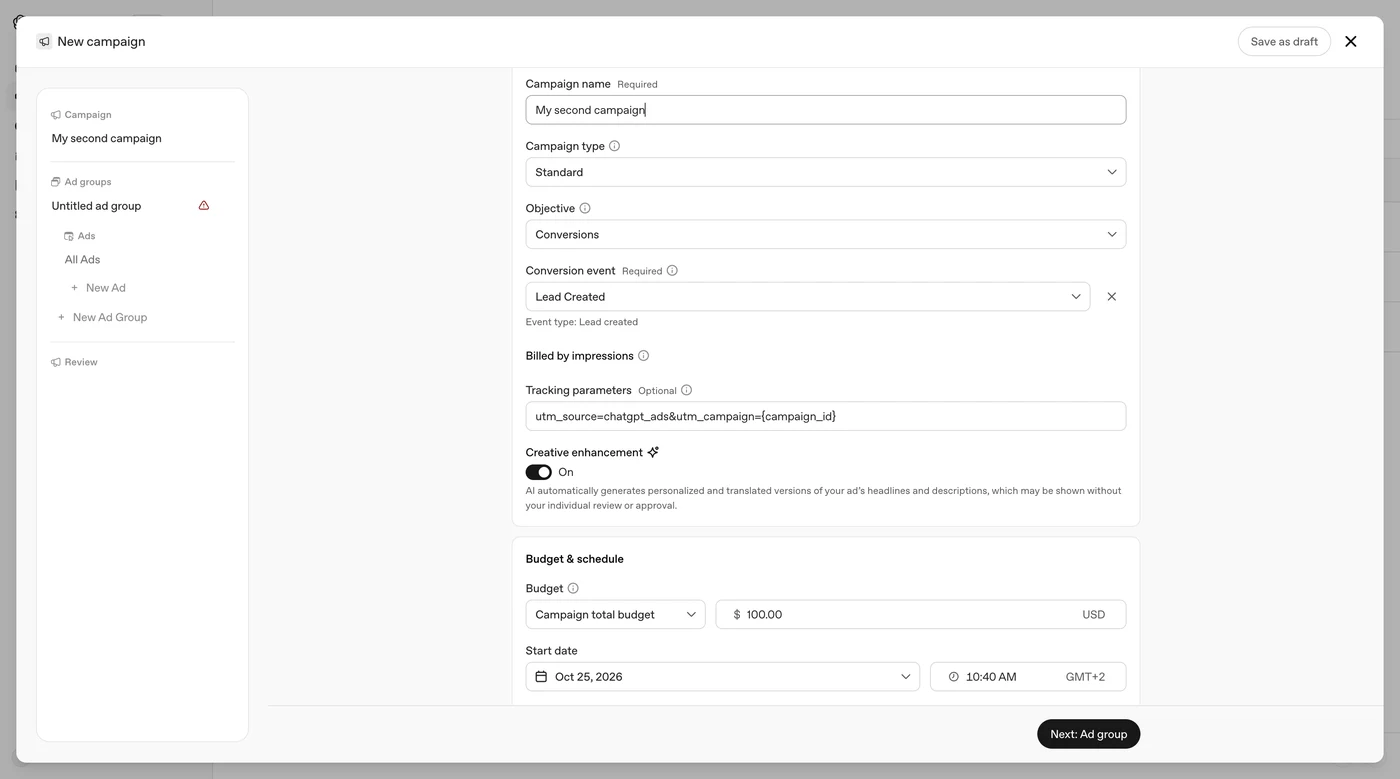
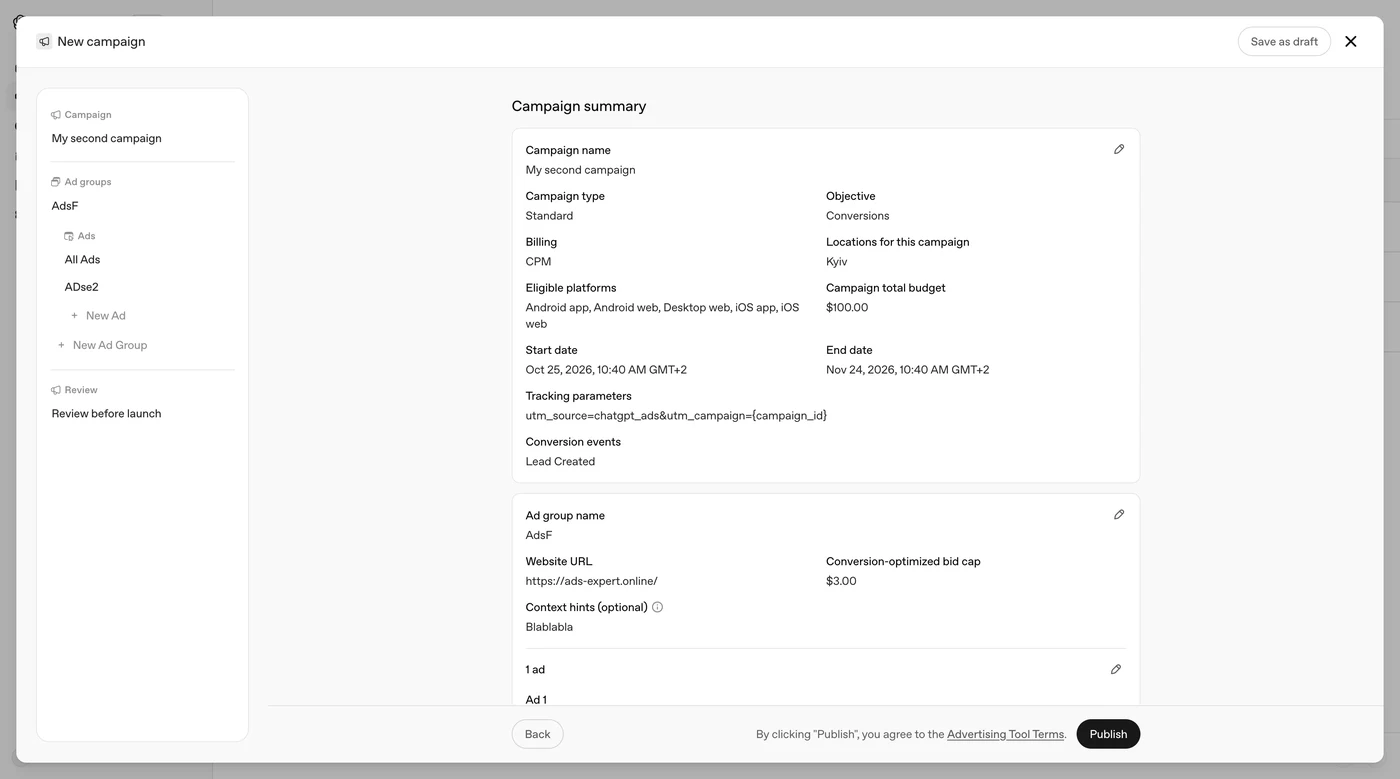
There are three goals: Views (paying per 1,000 impressions, CPM), Clicks (paying per click) and Conversions (optimizing for a conversion event). You don’t pay for the conversion itself, and the goal can’t be changed after the campaign is created. I chose conversions with the Lead event.
The minimum daily budget is $25. I tried setting $10 and the account wouldn’t accept it. So testing on 5 dollars isn’t an option; plan for at least 25.
There’s also a lifetime budget for the whole campaign. I set $100 for a month, and the account accepted it. Technically this lets you spend less than $25 a day. But a lifetime budget only caps the total for the period, and how the system will spread it across days is unknown: it may spend unevenly. I’ll check this after launch. One more nuance: if you switch from a lifetime budget to a daily one, you can’t switch back.
Pay separate attention to the Creative enhancement toggle. It’s on by default: AI generates personalized and translated versions of headlines and descriptions, and they can be shown without your review.
Targeting and platforms
In standard campaigns you can target cities, including in Ukraine. I removed Ukraine as a whole and kept Kyiv. Product campaigns target only at the country level, so you can’t run a feed campaign for a single city.
I couldn’t exclude small towns in Kyiv Oblast — they’re simply not in the list.
Platforms: app and web on Android, web on desktop, app and web on iOS.
Bids and context hints
In the ad group you choose a strategy: automatic, where ChatGPT manages bids itself, or with a manual bid cap. I suspect automatic bidding will be sky-high right now, but that needs testing. I set a $3 cap, and the account immediately warned that with a $3 bid the ads may not show at all.
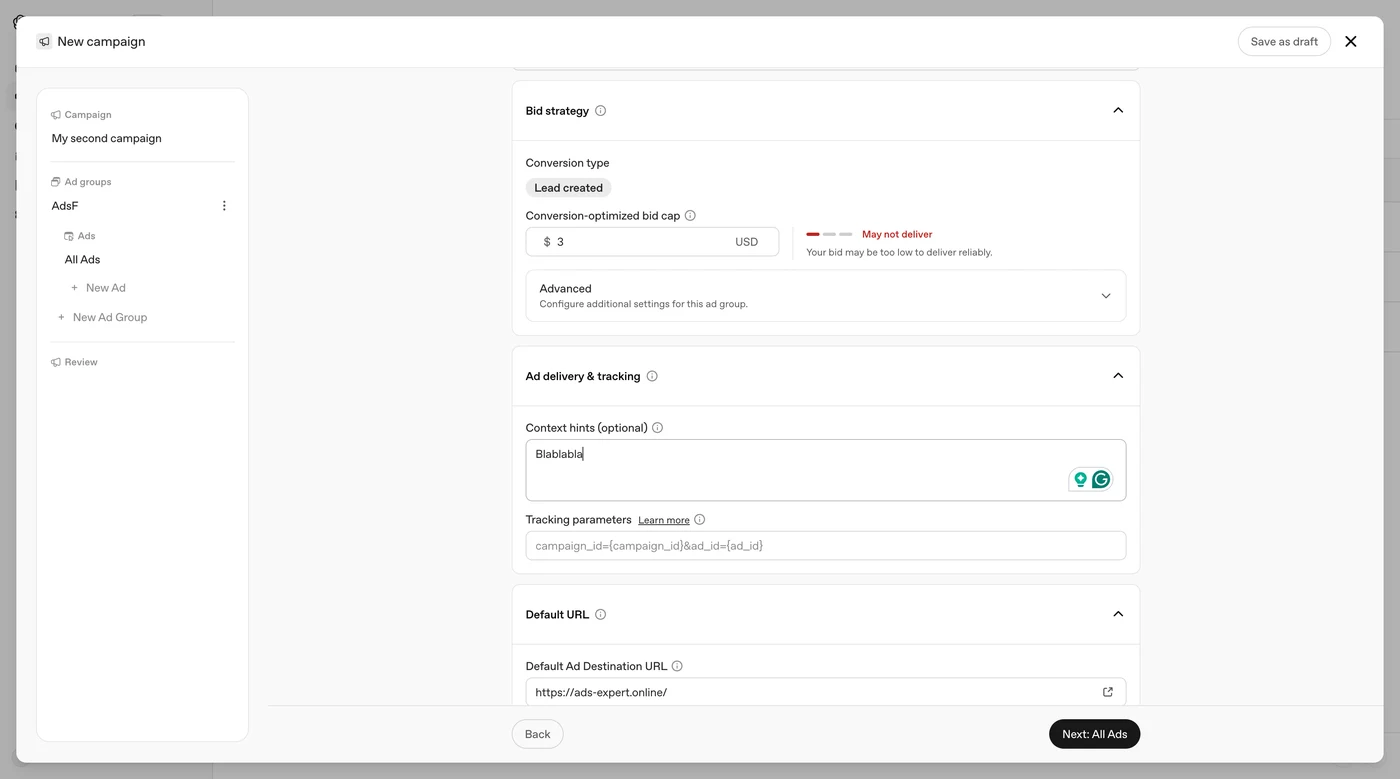
Next are context hints: a description of the conversations where your ad is relevant. These are not keywords. The system only uses them as guidance; you can’t tie an ad strictly to a query. The field can be left empty.
Ads
You can write ads manually or use the variants ChatGPT generates itself. On test data it did a decent job building them from my site’s content.
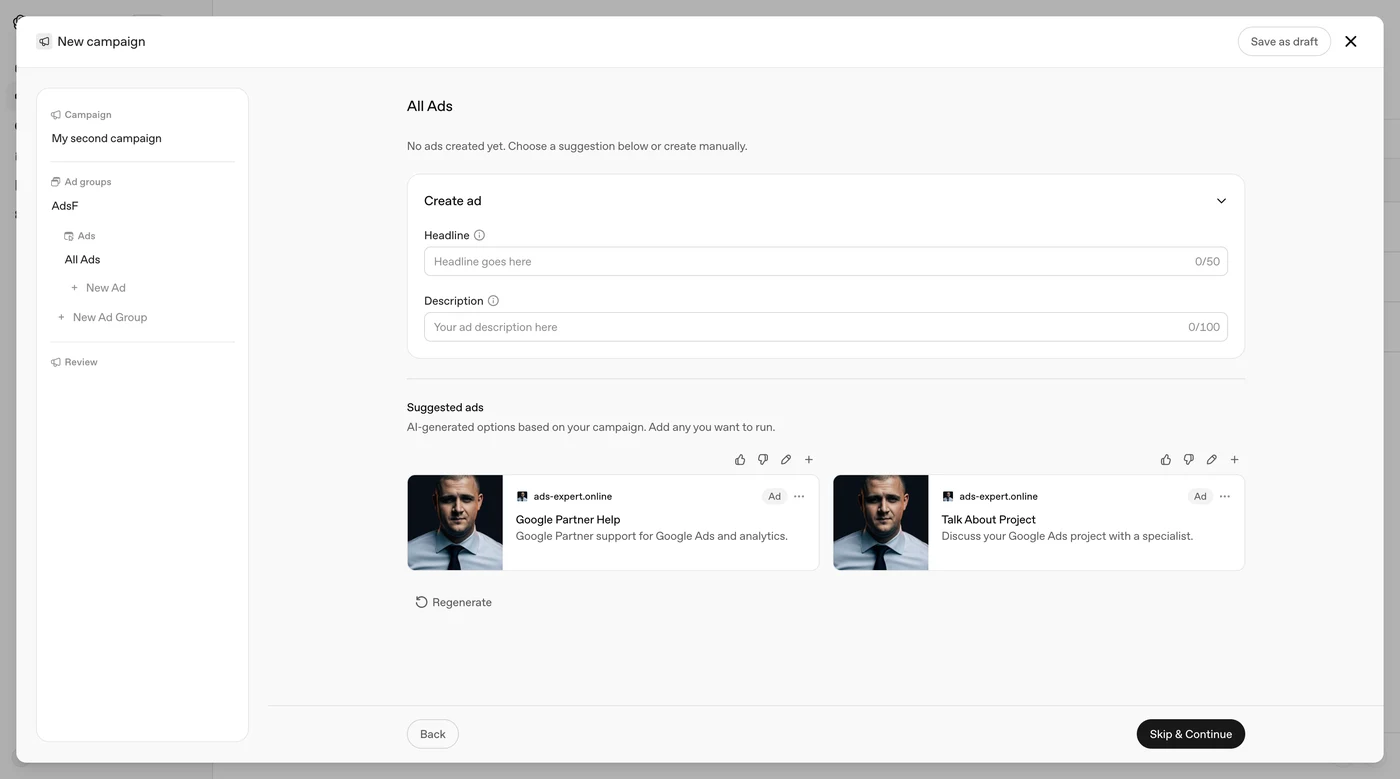
Manually you set a headline, description, link and a square image of at least 256×256 px. Headline up to 32 characters, description up to 54. That’s really not much, so you have to be brief. You can add tracking parameters to the link with the placeholders {campaign_id}, {ad_group_id}, {ad_id}. I set utm_source=chatgpt_ads&utm_campaign={campaign_id} so Google Analytics and the CRM show where the person came from. You can build such a link with my UTM builder.
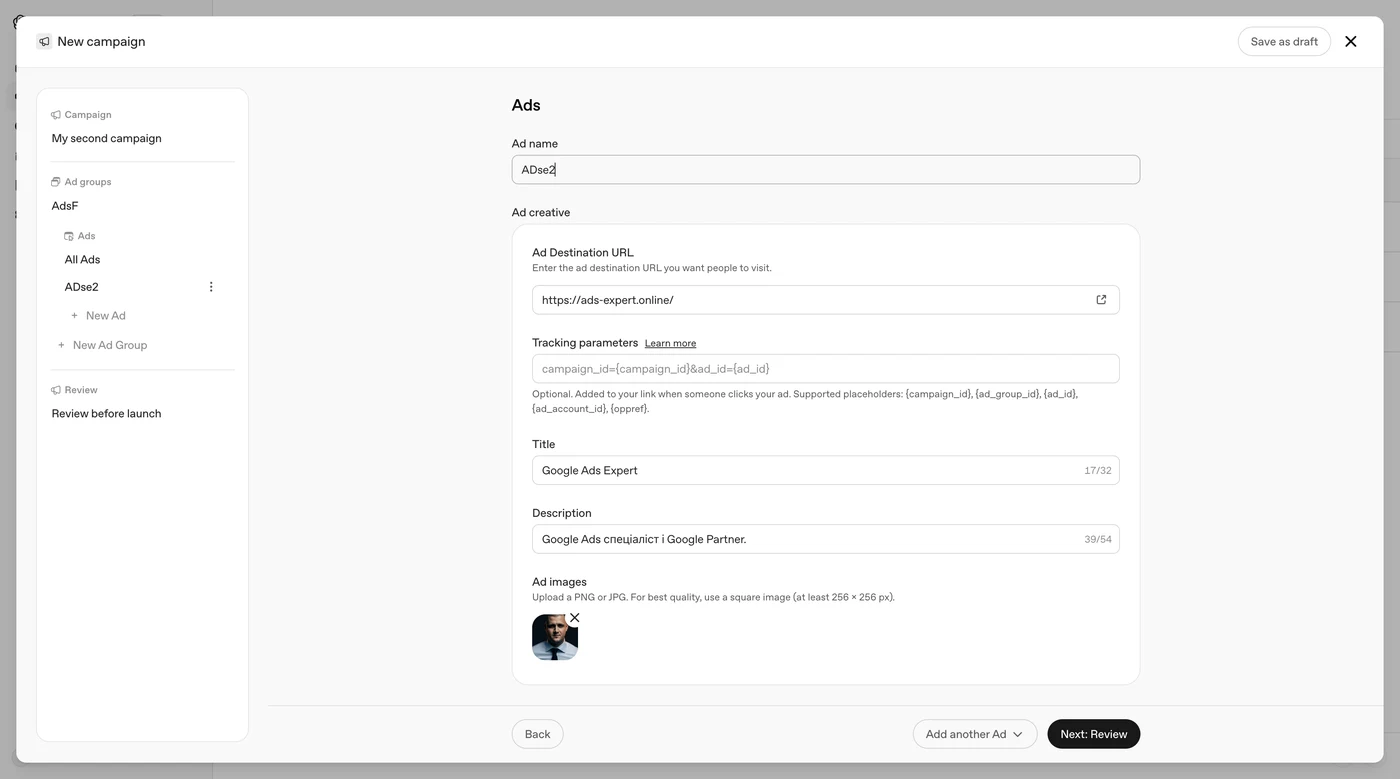
Finally, you review all settings and publish. Building the campaign itself is not much different from Google Ads.
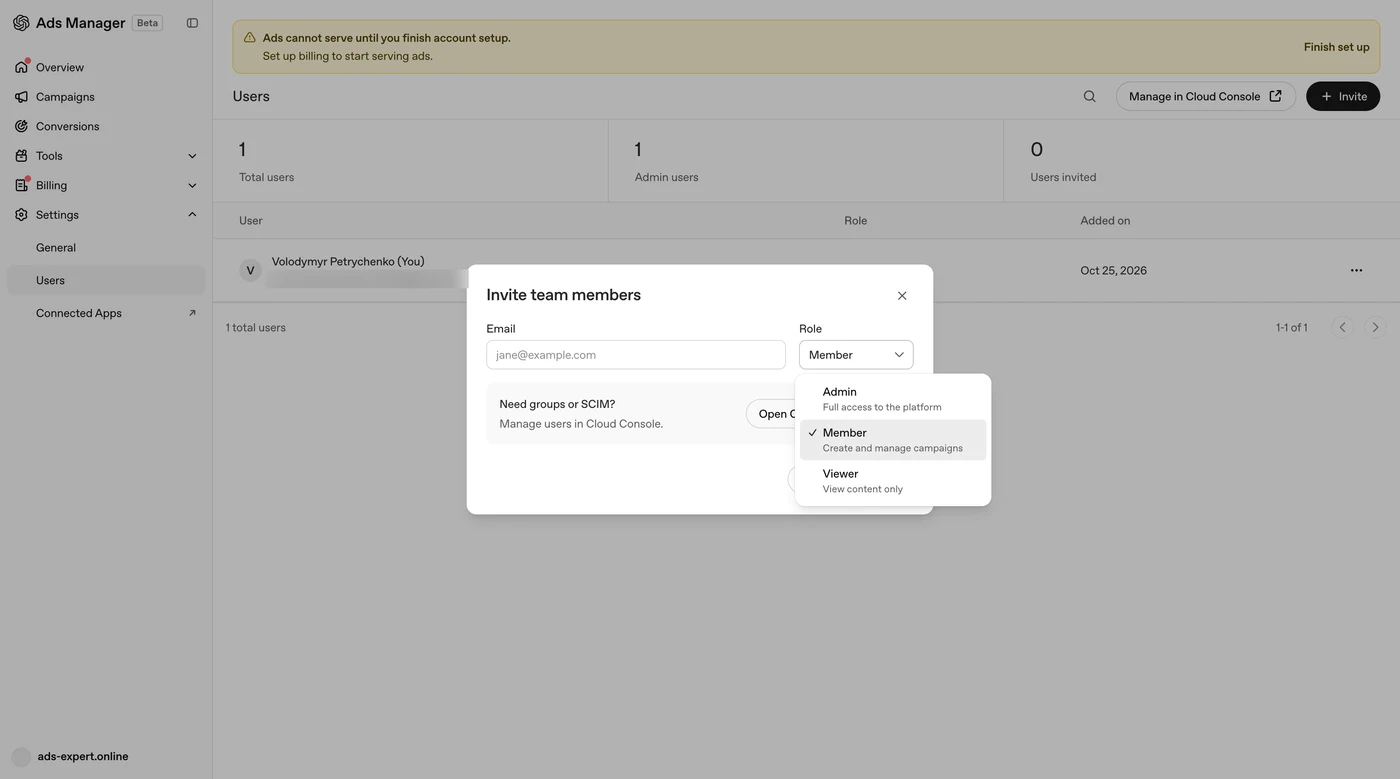
If several people work on the ads, you can add users with Admin, Member and Viewer roles in the settings.
What’s next
Creating a campaign correctly is only the start. After that, everything comes down to optimization. Once billing works and the ads have run, I’ll record a separate video: what the reports show, what can be analyzed and roughly how much a customer costs in different niches.
If you’re planning to test advertising in ChatGPT, set up the pixel and the lead event now and check in the event stream that they’re coming through. Then on launch day the campaign will immediately have something to optimize on.
09 — ChatGPT AdsChatGPT Ads conversion and product feed setupPixel and conversion events via Google Tag Manager, an auto-updating product feed — so ChatGPT ads optimize for leads and sales from day one.
Where to find me
Message me on Telegram or by email — I respond quickly. Telegram channel and YouTube are for those who want to see real cases before reaching out and understand my approach.